eHallpass Kiosk Mode: A Step-by-Step Guide for School Administrators
Digital hall passes make student movement tracking easier and more efficient in schools. The eHallpass system‘s kiosk mode adds an extra layer of convenience for both students and staff.
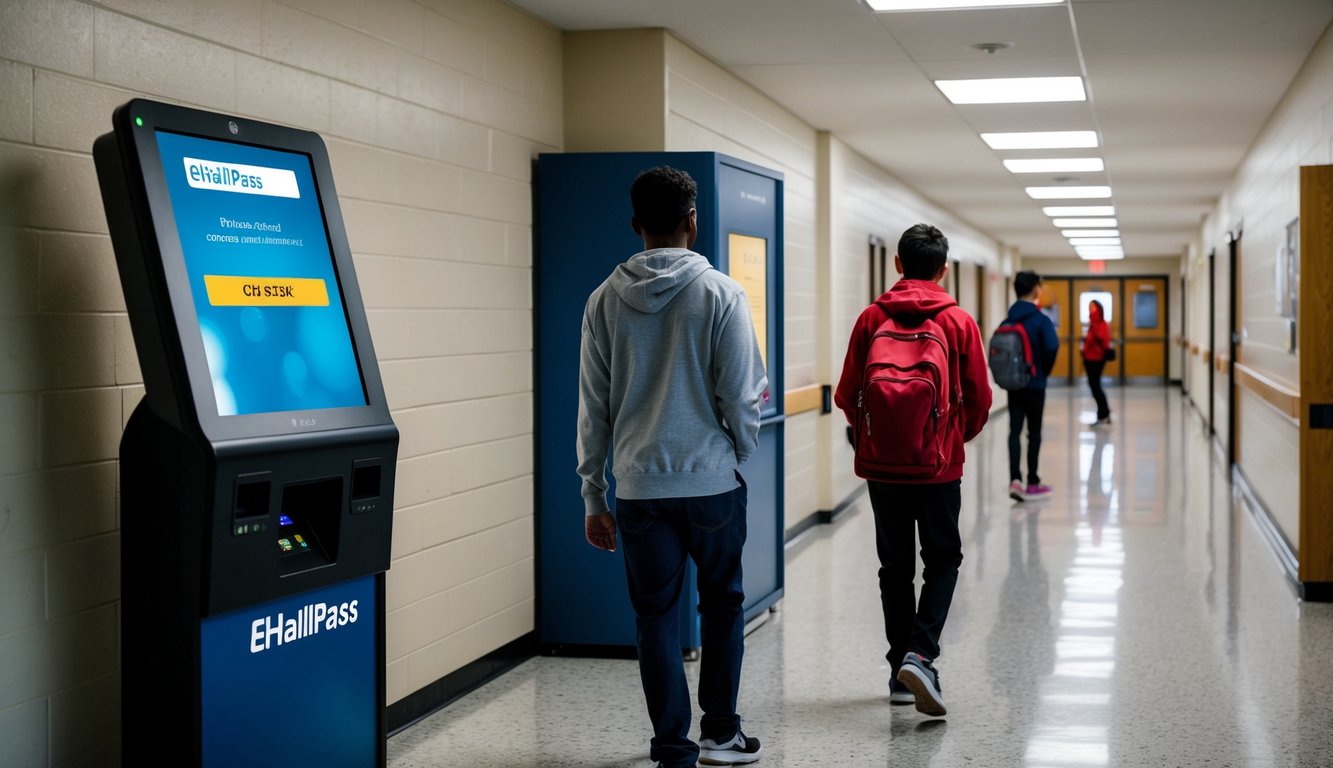
Students can create their own passes at designated kiosk stations by selecting their destination from a dropdown menu, while administrators maintain control through auto-approval settings for specific locations like bathrooms. The system keeps everything organized and secure.
Setting up kiosk mode is simple and requires just a few steps. Schools can set up multiple kiosk stations throughout the building, each with its own unique code, to give students easy access to the pass creation system.
Understanding eHallpass and Kiosk Mode

Digital hall pass systems transform the way schools manage student movement. Kiosk mode adds convenience and efficiency to this process through dedicated pass-creation stations.
The Basics of eHallpass
eHallpass is a digital system that replaces paper hall passes in schools. Students and teachers use it to create, approve, and track hall passes electronically.
The platform works through any web browser at ehallpass.com. Users log in with their school email and password to access the system.
Teachers can monitor student locations and movement patterns in real-time through their dashboard. The system records pass history and duration for each student.
What is Kiosk Mode?
Kiosk mode turns a device into a dedicated pass-creation station. Students can request passes from these fixed locations without needing their own devices.
To set up a kiosk:
- Go to Management > Kiosks in the dashboard
- Click “Create Kiosk”
- Name your kiosk
- Select pass settings
- Enter the provided code on the device
Each kiosk can be customized with specific pass types and permissions for different locations.
Benefits of Kiosk Mode for Hall Pass Management
Kiosk mode creates easy access points for students who need passes. Fixed stations in classrooms or hallways ensure consistent availability.
Key advantages:
- Automatic pass approval for certain locations like bathrooms
- Reduced need for personal devices
- Simplified pass creation process
- Central tracking of student movement
- Better security through designated access points
Schools can place kiosks strategically throughout the building to maintain efficient traffic flow. Multiple kiosks can be set up using different codes from the dashboard.
Setting Up eHallpass in Kiosk Mode
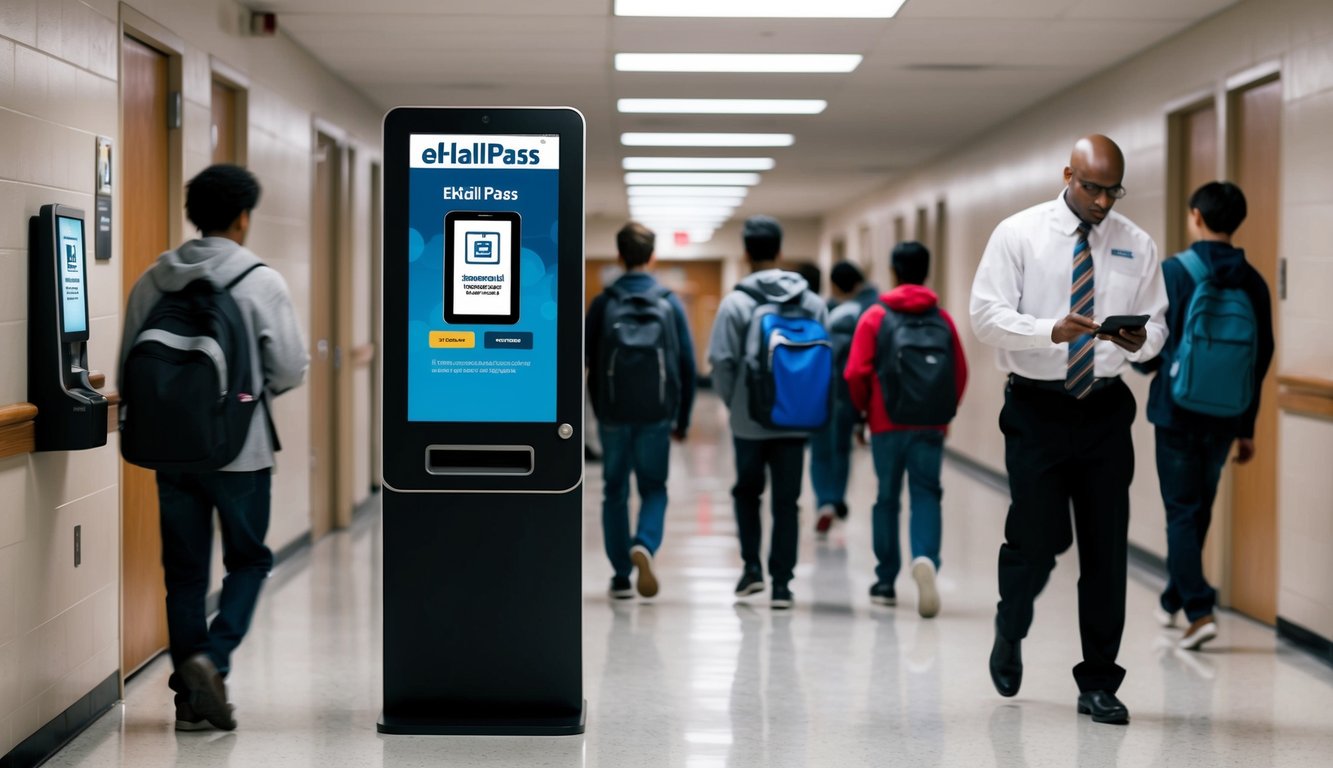
Setting up eHallpass in kiosk mode requires specific device configurations and account management steps to create a seamless pass system for students and staff.
Configuring Chromebook Kiosks for eHallpass
Open the Chromebook settings and select “Manage Kiosk Apps” under device settings. Install the eHallpass app from the Chrome Web Store.
Navigate to your eHallpass dashboard and select “Management > Kiosks.” Click “Create Kiosk” and give it a name that identifies its location.
Generate a unique kiosk code from the dashboard. Enter this code on the Chromebook device to link it to your school’s eHallpass system.
Set pass restrictions and user permissions through the dashboard. Choose which locations need automatic approval and which require teacher confirmation.
Utilizing iPads and Other Web-Enabled Devices
Access the eHallpass website through a compatible browser on the iPad or device. Enable “Guided Access” on iPads to prevent students from accessing other apps.
Select “NEW PASS” to test the system. The screen should display your school’s customized pass options and locations.
Set up auto-logout timers to ensure security between users. Enable touch-screen compatibility through the device settings.
Creating a Minga Account for eHallpass Integration
Register for a Minga account through your school’s authorized administrator. Fill in the required school information and verification details.
Link your Minga credentials to the eHallpass system. Select “Connect to Minga” in the eHallpass dashboard settings.
Add student and staff information to sync with the pass system. Set user roles and permissions based on school protocols.
Test the integration by creating a sample pass request. Make sure all pass data transfers correctly between Minga and eHallpass.
Managing Hall Passes and Activities
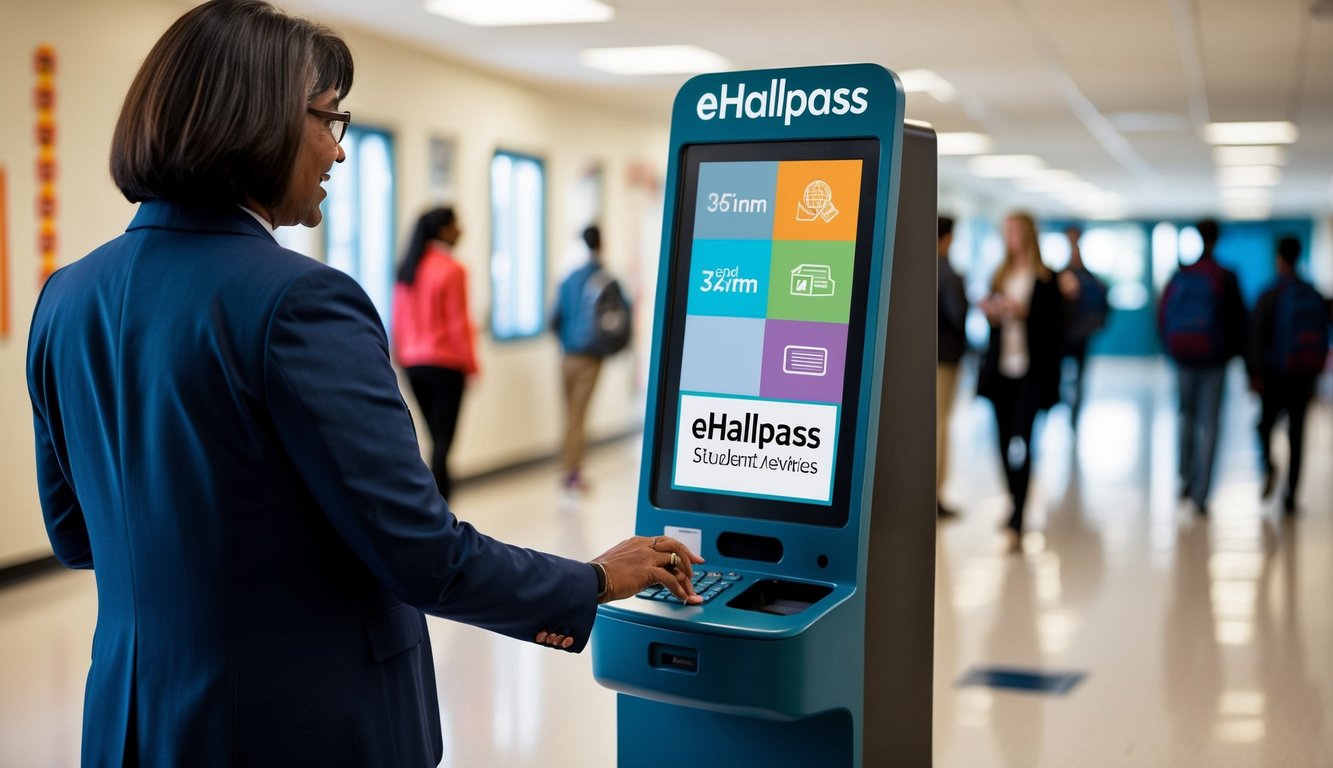
Digital hall pass management streamlines student movement tracking while making it easy to monitor activities and events in real-time.
Creating and Streamlining Digital Hall Passes
Teachers can quickly create digital passes from their dashboard with just a few clicks. The system allows for both manual and automatic pass approval options.
Students select their destination and submit pass requests through the kiosk interface. With Auto Pass enabled, requests receive instant approval for designated locations.
Key Features:
- One-click pass creation
- Customizable destinations
- Auto-approval settings
- Student self-service options
Monitoring Active Hall Passes and Flex Periods
Teachers view all current passes on their dashboard in real-time. The system displays student locations, time stamps, and pass durations.
Active Pass Details:
- Student name and grade
- Current location
- Start and end times
- Pass status
Flex period management lets staff track scheduled activities and attendance. Teachers can set time limits for different types of passes based on school policies.
Handling Event Check-Ins with eHallpass
Event check-in features simplify attendance tracking for special activities and assemblies. Staff can create dedicated passes for specific events or gatherings.
The system records:
- Event arrival times
- Duration of attendance
- Return to classroom times
Multiple kiosks can be set up at event locations to prevent bottlenecks. Students scan in and out efficiently, maintaining accurate attendance records.
Event organizers access real-time attendance data through their dashboard. This helps ensure student accountability during special activities.
Optimizing the User Experience for Teachers and Students
The right setup of pass management tools and notifications helps create smooth hallway transitions. Simple customization options and clear communication channels make the system work better for everyone.
Customizing Pass Requests and Check In Procedures
Teachers can set specific rules for different pass types through the dashboard. Auto-approval settings speed up bathroom passes while keeping control over other destinations.
The check-in process works best when students have clear instructions at kiosk stations. A simple dropdown menu lets them select destinations quickly.
Teachers can mark certain locations as favorites to speed up common pass requests. This saves time during busy class periods.
Implementing Effective Notification Sounds
Clear audio alerts help teachers track student movement without constant screen monitoring. Different tones can signal pass requests versus returns.
Setting appropriate volume levels prevents disruption while ensuring alerts are heard. Teachers can choose from several notification options based on classroom needs.
Sound settings can be adjusted for different times of day. Morning classes might need louder alerts than quiet study periods.
Leveraging Minga for Enhanced Communication
Minga integration connects pass data with broader school communication tools. Teachers receive real-time updates about student locations and pass status.
Staff can send quick messages about pass issues or policy changes. The system keeps everyone informed about hallway traffic patterns.
Mobile notifications help teachers manage passes while moving around the classroom. They can approve or deny requests from any device.
Monitoring and Improving Kiosk Mode Usage
Regular monitoring and data analysis help schools make the most of eHallpass kiosk systems while maintaining efficient student movement tracking.
Training Hall Monitors to Use eHallpass Efficiently
Hall monitors need clear guidance on checking student passes through the kiosk system. Staff should verify that students tap in and out properly at designated kiosk locations.
Monitors must learn to quickly spot unauthorized passes or students who haven’t properly signed out. A key responsibility is ensuring students select accurate destinations from the dropdown menu.
Key monitoring tasks:
- Check that passes match student IDs
- Verify pass times and destinations
- Report technical issues promptly
- Guide students on proper kiosk use
Analyzing Usage Data for Continuous Improvement
The eHallpass dashboard provides valuable data on pass patterns and usage trends. Schools can track peak traffic times, popular destinations, and average pass durations.
Regular data reviews help identify potential issues:
- Unusual pass frequency patterns
- Locations with high traffic
- Extended pass duration trends
- Incomplete sign-outs
Administrators can use these insights to adjust auto-approval settings for certain locations. They can also optimize kiosk placement based on student traffic flow patterns.
Setting weekly data review schedules helps catch problems early. Quick responses to unusual patterns maintain system effectiveness.
Frequently Asked Questions
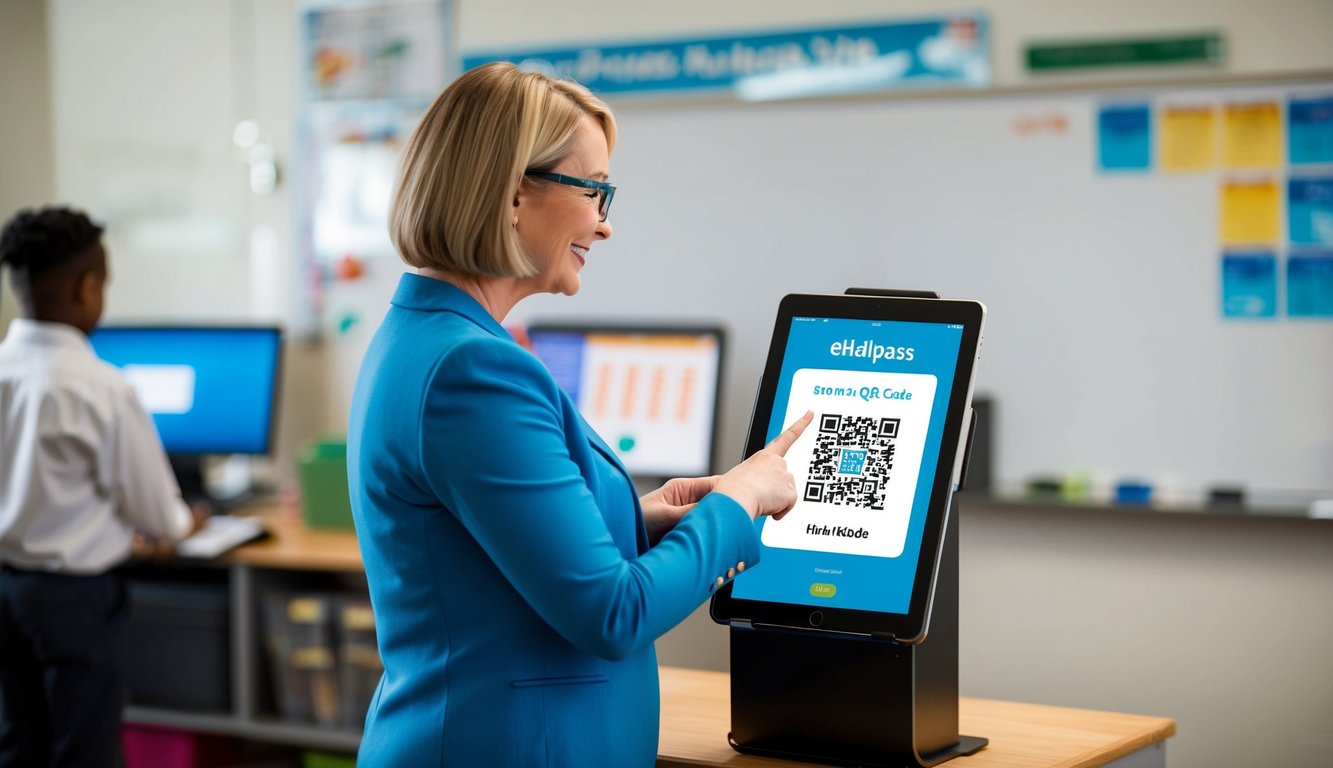
Setting up and managing eHallpass kiosk mode involves specific steps for configuration, security, and troubleshooting. Schools can create an efficient digital hall pass system through proper setup and maintenance.
What are the steps to configure kiosk mode for electronic hall pass systems?
Access the eHallpass dashboard and navigate to Management > Kiosks. Click “Create Kiosk” and enter a name for the device.
Select the desired pass settings and user permissions for the specific kiosk location.
Enter the generated kiosk code on the device you want to set up. Each new kiosk requires a unique code from the dashboard.
Can you guide me through the initial setup process for an e-hall pass on a kiosk?
Open the kiosk URL on the designated device. Enter the administrator-provided kiosk code when prompted.
Select the appropriate pass types and destinations from the dropdown menu. Some locations like bathrooms can be set for automatic approval.
Test the setup by creating a sample pass to ensure proper functionality.
What troubleshooting tips can you offer if a kiosk is not properly displaying hall passes?
Check the internet connection and refresh the kiosk page. Make sure the device meets system requirements.
Verify that the kiosk code is correctly entered and still valid. Generate a new code if needed.
Clear the browser cache and cookies if display issues persist.
What are the benefits of using kiosk mode for managing hall passes in schools?
Kiosk mode streamlines the pass creation process and reduces paper waste. Students can quickly request passes from designated locations.
Digital tracking provides real-time monitoring of student movements. Administrators can access detailed reports and analytics.
How can administrators ensure the security of e-hall pass systems in kiosk mode?
Place kiosks in supervised areas with clear visibility. Set up user authentication requirements for pass creation.
Regularly update access codes and monitor system logs for unauthorized use. Enable automatic timeout features for inactive sessions.
What are the common problems encountered when using e-hall pass kiosks and how can they be resolved?
Students sometimes forget to check back in when returning. Set up automatic pass expiration times and send notifications to staff.
Technical glitches may occur with browser compatibility. Use recommended browsers and keep them updated.
System slowdowns can happen during peak usage times. Optimize network connectivity and consider adding more kiosk stations in high-traffic areas.