How to Create an Appointment Pass on eHallpass: A Step-by-Step Guide for Students
Managing school hall passes has become easier with eHallPass, a digital system that streamlines the process of creating appointment passes. Students and teachers can access this tool through their institution’s official website or interface.
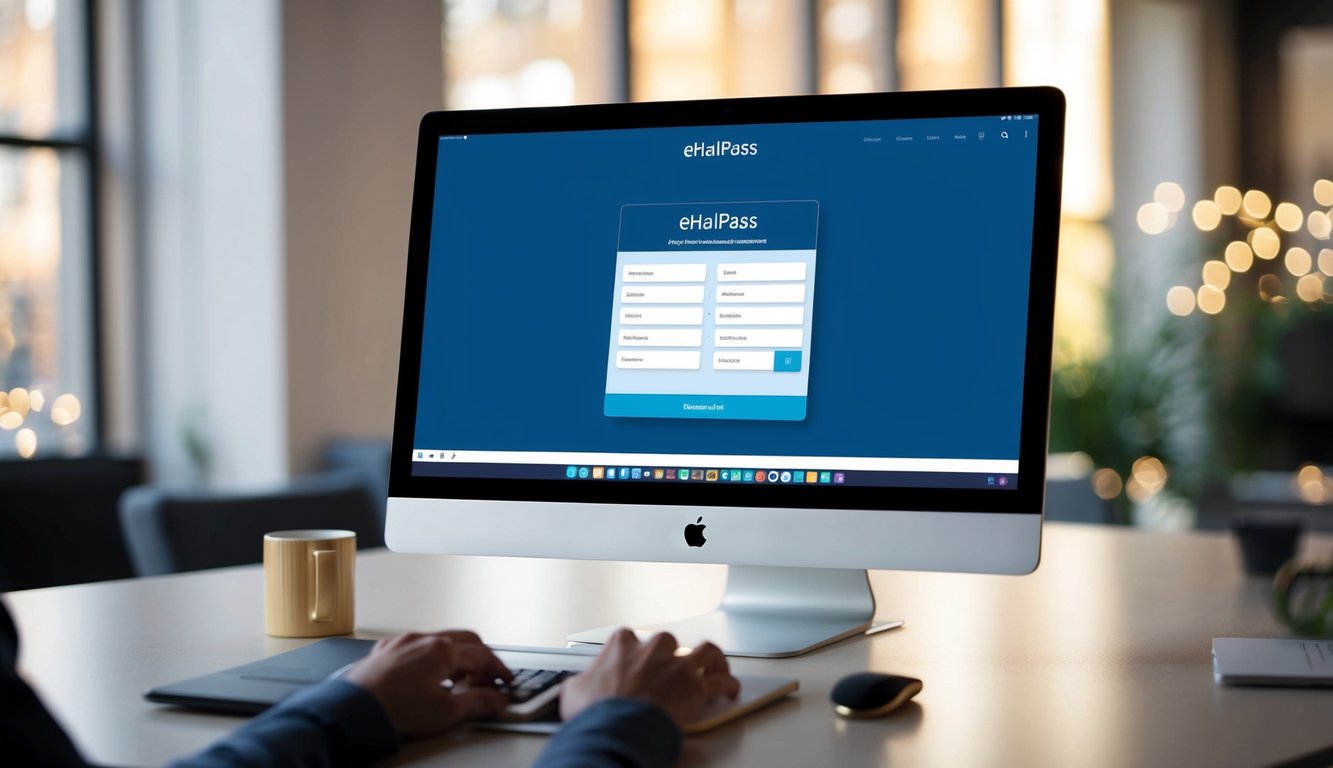
Creating an appointment pass takes just a few simple steps: log into eHallPass, click the Create button or Appointments tab, enter the student’s name, select the period, and choose the destination. The system offers quick access through a menu on the left side or a blue Create button for added convenience.
Teachers can set up favorites and track passes efficiently, while students can request passes when needed. This digital approach replaces paper passes and helps schools maintain better records of student movement throughout the day.
Understanding eHallpass

Digital hall pass systems have transformed how schools manage student movement and safety. eHallpass brings precision and efficiency to this essential school function through its digital tracking and management features.
eHallpass Overview
eHallpass is a digital hall pass management system that helps schools track student movements throughout the day. The platform replaces paper passes with a secure digital system.
Students request passes through the eHallpass interface on computers or mobile devices. Teachers and staff can approve or deny these requests instantly.
The system records each pass’s start and end times, creating a clear record of student whereabouts. This digital tracking helps schools maintain safety and security.
The Importance of Hall Pass Systems
Digital hall pass systems strengthen school safety by providing real-time information about student locations. Staff can see who is in the hallways at any moment.
These systems protect student privacy while giving administrators valuable data about facility usage and traffic patterns. Schools can identify busy periods and adjust their protocols as needed.
Digital passes reduce disruptions by streamlining the approval process. Students spend less time waiting for passes and more time learning.
The structured system helps prevent unauthorized hallway wandering and ensures accountability for both students and staff.
Getting Started with eHallpass
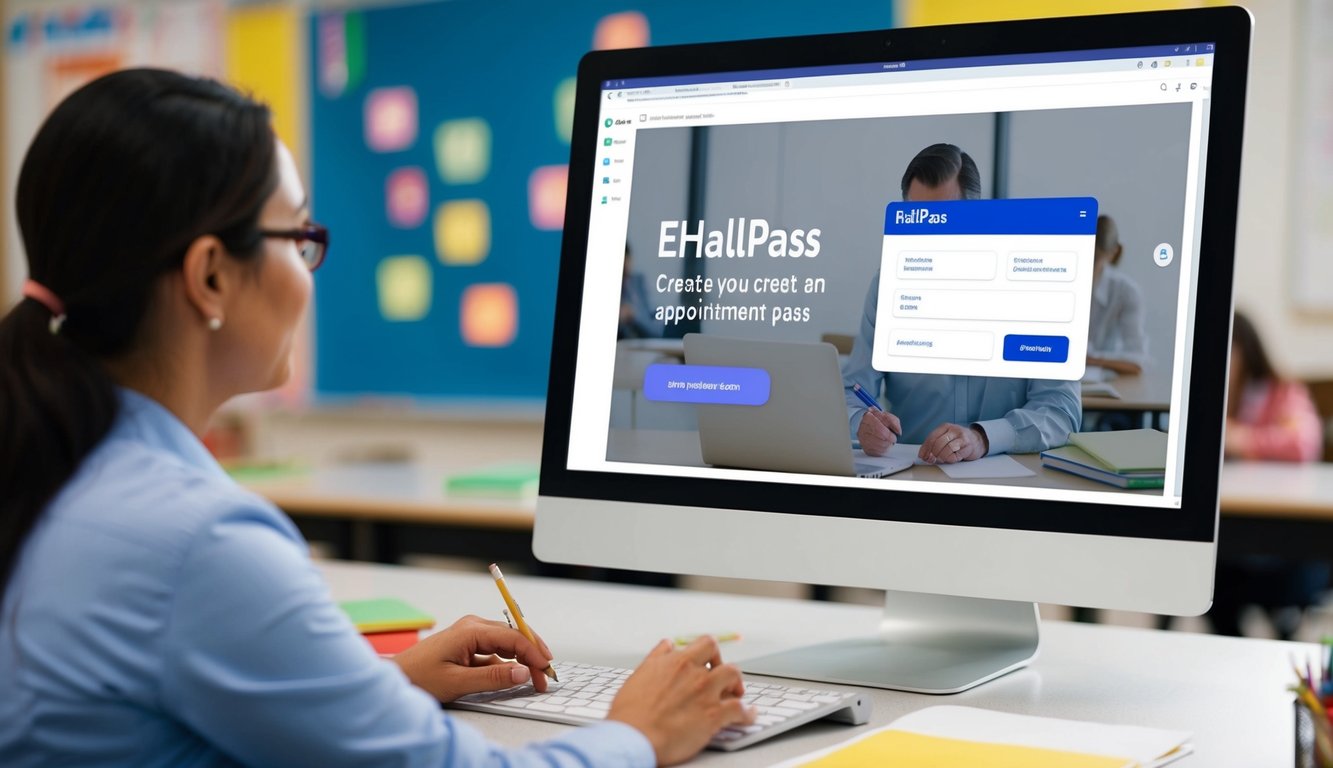
eHallpass provides digital hall pass management for schools through a simple web interface. The platform connects students and teachers while tracking movement throughout the building.
Account Creation and eHallpass Login
Schools handle initial account setup for teachers and students. Each user receives unique login credentials linked to their school email address.
Users can access eHallpass through their school’s designated web portal. The login page requires a username and password.
Two-factor authentication adds security to protect student information. Users may need to verify their identity through email or text message.
Seamless Integration with ClassLink
ClassLink serves as a single sign-on gateway to eHallpass. Users click the eHallpass icon in their ClassLink dashboard for instant access.
The integration syncs user data between systems automatically. Class rosters and schedules appear without manual entry.
GG4L (Global Grid for Learning) ensures secure data transfer between platforms. Student privacy stays protected at all times.
Understanding the Dashboard
The dashboard displays active passes and scheduled appointments in an easy-to-read format. A color-coded system shows pass status at a glance.
Teachers see a list of current student locations and pending pass requests. The interface highlights students who need immediate attention.
Quick-action buttons let users create passes, approve requests, and track student movements. Clear icons make navigation simple.
The dashboard includes a real-time counter for passes in use. Teachers can set limits on simultaneous passes per class period.
Creating and Managing Appointment Passes

EHallpass makes it simple to schedule and track student movements throughout the school day with digital passes. Teachers and staff can create, modify, and monitor passes efficiently through the online system.
The Process of Creating an Appointment Pass
To create an appointment pass, log into the EHallpass dashboard and select “Create Pass.” Choose “Appointment Pass” from the pass type options. Fill in these key details:
- Student name
- Date and time
- Destination
- Purpose of visit
- Duration
Teachers can set up favorite destinations to speed up future pass creation. The system allows for both one-time and recurring appointments.
Viewing and Editing Appointment Passes
The EHallpass dashboard displays all active and scheduled passes. Teachers can:
- Toggle between “My Passes” and “All Passes” views
- Edit dates, times, and locations
- Cancel passes when needed
- Check pass status in real-time
Changes update instantly across the system, keeping all staff informed of schedule adjustments.
Managing Student Movements
Staff members track student locations through the digital interface. The system shows:
- Current pass status
- Student arrival times
- Pass duration
- Movement patterns
Teachers can set pass limits and location restrictions for better crowd control. The platform alerts staff when students take too long between destinations.
QR codes make check-in simple at designated points. Students can scan codes to mark their arrival and departure times automatically.
Features for Accountability and Safety

EHallpass uses digital tracking, record keeping, and notification systems to protect students while maintaining their privacy. The platform helps schools monitor hallway traffic and keep accurate records of student movements.
Real-Time Location Tracking
The system displays active passes on a digital dashboard for administrators and teachers. Staff can see which students are in the halls and their intended destinations.
Students must check in at their destination to verify their arrival. This creates a clear digital trail of student movements throughout the day.
The tracking feature helps identify concerning patterns like frequent bathroom visits or unauthorized location changes. School staff can quickly locate students during emergencies.
Digital Record Keeping and Reporting
Pass data is stored securely in a searchable database. Administrators can generate reports on pass frequency, timing, and destinations.
The system tracks important metrics:
- Average time spent out of class
- Most common destinations
- Peak pass usage times
- Students with excessive passes
Reports help identify potential issues like hall pass abuse or students avoiding certain classes. Data analysis supports better school management decisions.
Notifications and Privacy Considerations
Teachers receive automatic alerts when:
- Students request passes
- Pass time limits are exceeded
- Students fail to check in at destinations
The system protects student privacy by:
- Limiting data access to authorized staff
- Encrypting sensitive information
- Following education privacy laws
- Allowing customizable viewing permissions
Parents can receive optional notifications about their children’s hall pass activity. Schools can adjust privacy settings based on their policies.
Advanced Settings and Customization
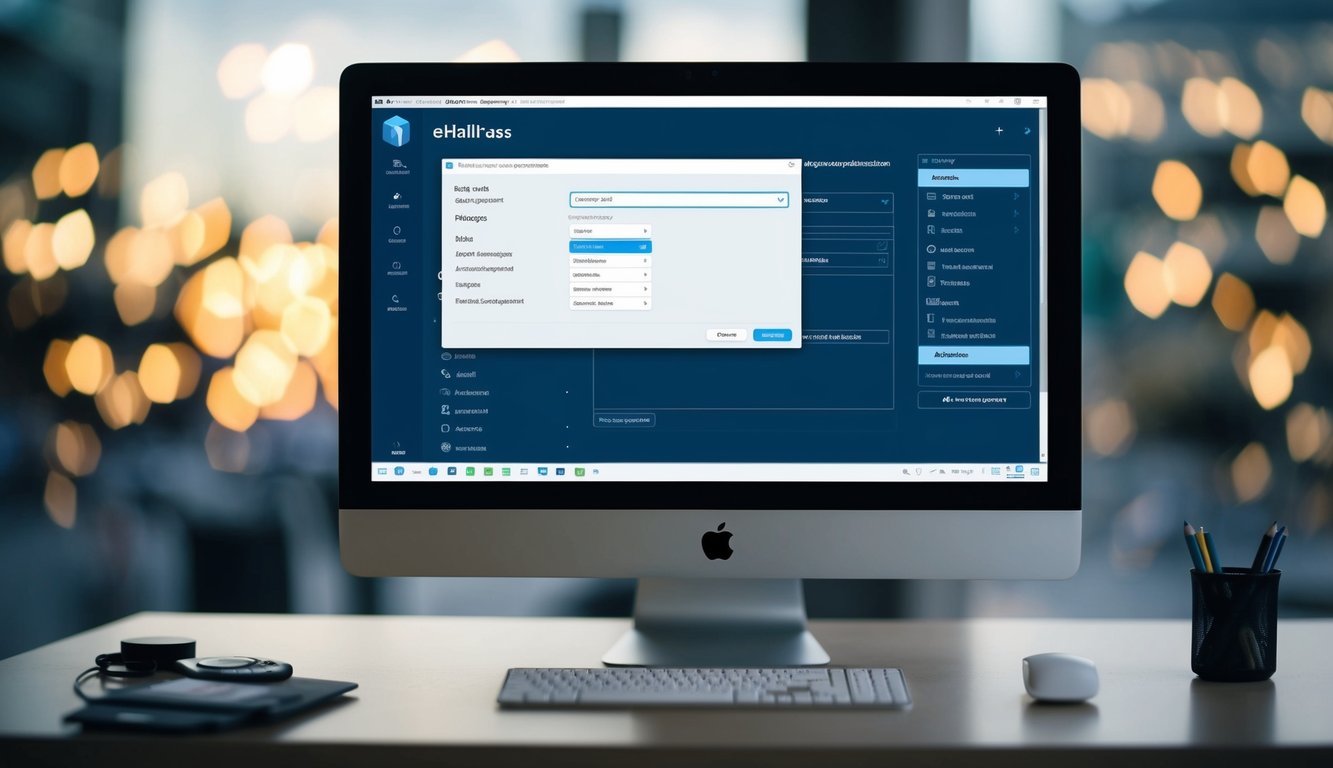
EHallPass offers powerful customization options to adapt the system to specific school needs and requirements. The platform provides control over pass timing, interface design, and accessibility features.
Configuring Kiosk Mode
Pass Kiosk mode creates a centralized access point for students without personal devices. Teachers can set up dedicated tablets or computers as pass stations in classrooms or common areas.
The kiosk interface displays a simplified menu for requesting passes and checking in. Administrators can limit kiosk functions to basic pass requests or enable full appointment scheduling.
Students log in using their school ID or QR code to request passes through the kiosk. The system tracks all kiosk activity and maintains security through automatic timeouts.
Customization for Educational Institutions
Schools can modify pass duration limits based on different destinations. A typical setup might allow 5 minutes for bathroom visits and 30 minutes for library trips.
Administrators can customize the interface colors and graphics to match school branding. The system supports adding school logos and adjusting terminology to match local preferences.
Pass types can be created or modified to fit specific school activities and locations. Each pass type can have unique rules and approval requirements.
Accessibility Features
The platform includes screen reader compatibility and keyboard navigation options. Text size and contrast settings can be adjusted for better visibility.
Voice commands enable hands-free pass creation and management. The system supports multiple languages to serve diverse student populations.
Simple, clear icons and color-coding help students with different learning needs navigate the system effectively. Alternative text descriptions accompany all visual elements.
Frequently Asked Questions
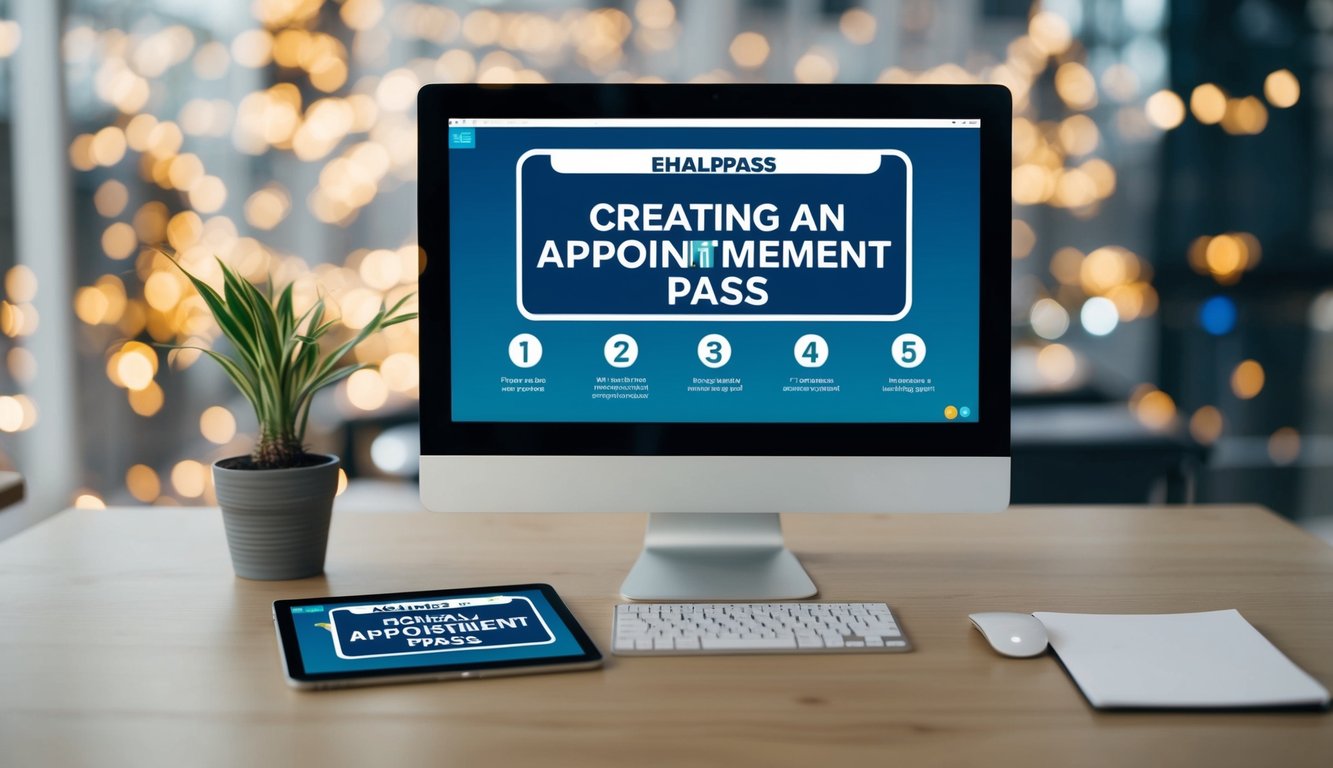
EHallPass users need clear guidance on creating passes, signing in, and managing their digital hall pass experience. Teachers and students can follow specific steps to make the system work smoothly.
What steps are involved in generating an appointment pass using eHallpass?
Teachers start by selecting “Create Appointment Pass” from the main menu. They pick a student from their class list and choose the appointment time and location.
The system needs a reason for the pass. Teachers can select from preset options or type in a custom explanation.
After filling in the details, clicking “Generate Pass” creates the appointment. The student receives a notification about their upcoming pass.
Can you guide me through the sign-in process for creating an e-hall pass?
School administrators set up initial accounts and send invitation emails to staff and students. Users click the activation link in their email to set up their password.
Students and teachers log in at the eHallPass website using their school email address and chosen password.
What is the procedure for concluding an active pass on the EHallPass system?
Students must check in at their destination using the system. The receiving teacher or staff member confirms their arrival.
When students return to their original location, they mark the pass as complete. The system records the total time spent.
What are the expenses associated with implementing EHallPass in an educational institution?
Schools pay based on their total student population. The pricing includes all features and updates.
Technical support and training come with the subscription. Schools can contact sales representatives for specific quotes.
How can a teacher approve a pass request on EHallPass?
Teachers see pass requests in their dashboard queue. They click on each request to view details.
The approval process requires checking the time, destination, and reason. Teachers can approve or deny with one click.
Is there a tutorial available for first-time EHallPass users who need to create passes?
The platform offers built-in video tutorials for new users. These guides walk through each step of pass creation.
Written instructions and help articles explain common tasks. Users can access these resources from their dashboard.
Support staff can provide additional training sessions for schools getting started with the system.